Select issues
Take actions on groups of issues.
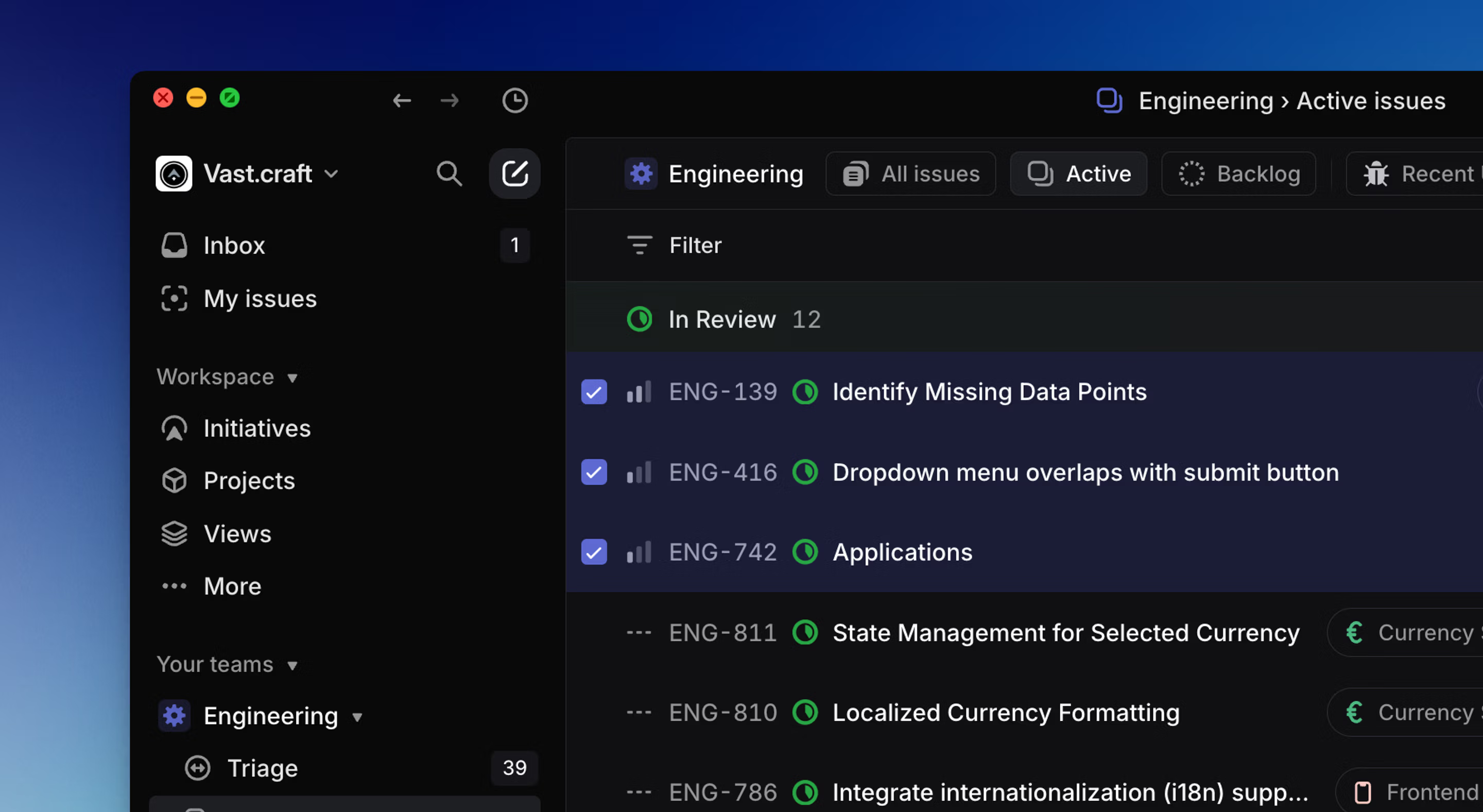
Overview
Highlighting or selecting one issue both allow you to take actions on the issue using keyboard shortcuts, the command menu, or right-click to bring up the contextual menu. The two differentiates when it comes to multiple issues.
By default, no issue is selected when you open a board or list of issues.
Highlight an issue
- Hover over the issue with your cursor until the issue is highlighted
- Use ↑ / ↓ or J / K to navigate the page to the issue
Select issues
- Once an issue is highlighted, press X shortcut
- Hold Shift and click your mouse on the issue
- Bring up a checkbox element by moving your cursor over the far left of any issue (near where the issue meets the sidebar)
Select multiple issues
Once an issue is selected, use the navigation to highlight another issue and press X.
To select multiple consecutive issues:
- Hold down Shift after selecting the first issue, then use the ↑ / ↓ keys to increase the selected range one issue at a time
- Use filters to refine the issue list first, then use Cmd/Ctrl A to select all issues on a board or list
Clear selection
Press Esc will clear selected issues on your list or board.
Take actions
Once an issue or set of issues are selected, use Cmd/Ctrl K to open the command bar and select the preferred action or right-click anywhere on the selected issue(s) to open the contextual menu for a list of available actions.
Moving issues to top, bottom, or in increments
To move an issue or issues up or down the list:
- In the Display Options, set the Grouping to No grouping
- Set the Ordering to Manual
- Select the issue(s) you want to move
- Use the shortcut Option/Alt Shift ↑ or Option/Alt Shift ↓ to move an issue/issues in increments
Update multiple issues
Select them with shortcuts or the mouse and then update the issue field like you would any issue. Common bulk actions will show up at the bottom.
- Select all keyboard shortcut: To change issue priority so all issues without a priority were assigned no priority, filter to no priority issues and then used Cmd/Ctrl A then P to update the priority.
- Use mouse to select multiple issues: To move some issues from Todo to backlog, select by hovering over them and individually marking the checkbox that popped up.
- Use keyboard to select multiple issues and bulk action toolbar: Holding down Shift while moving the up/down buttons to select multiple issues and choose a bulk action such as Move to backlog.